| Table of Contents |
|---|
How to Datalog
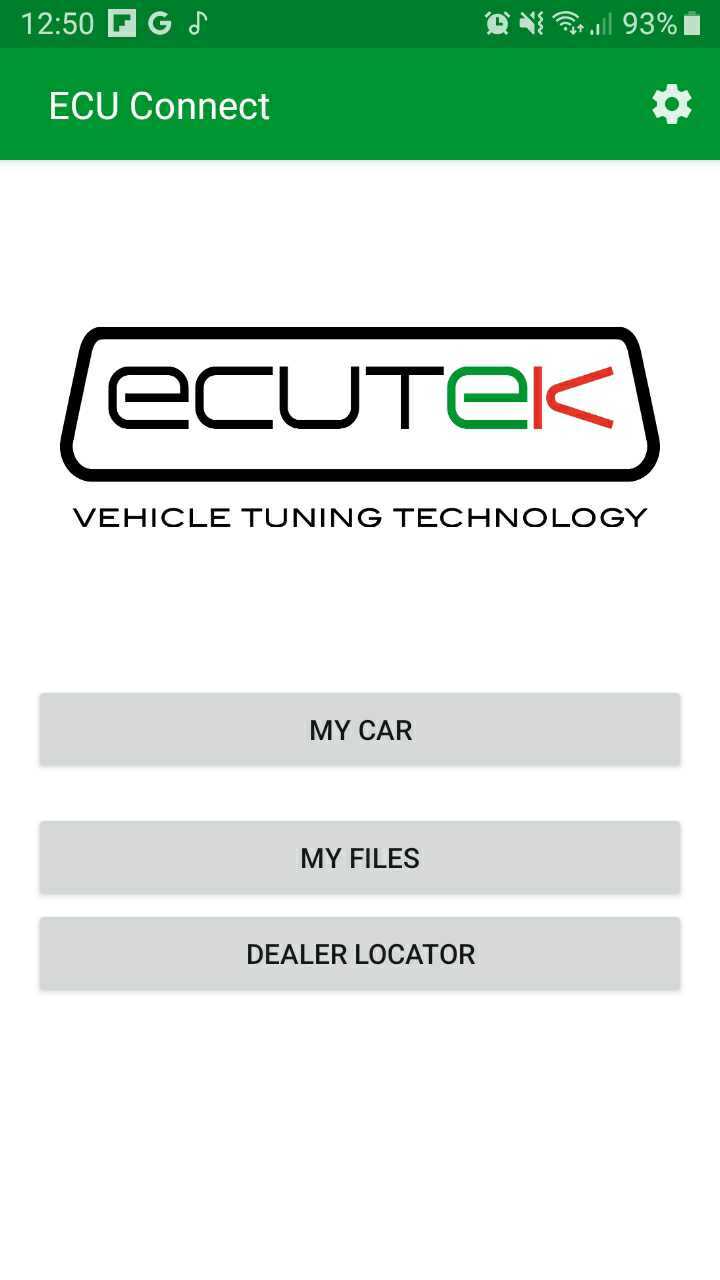
- From the main menu select "My Car"
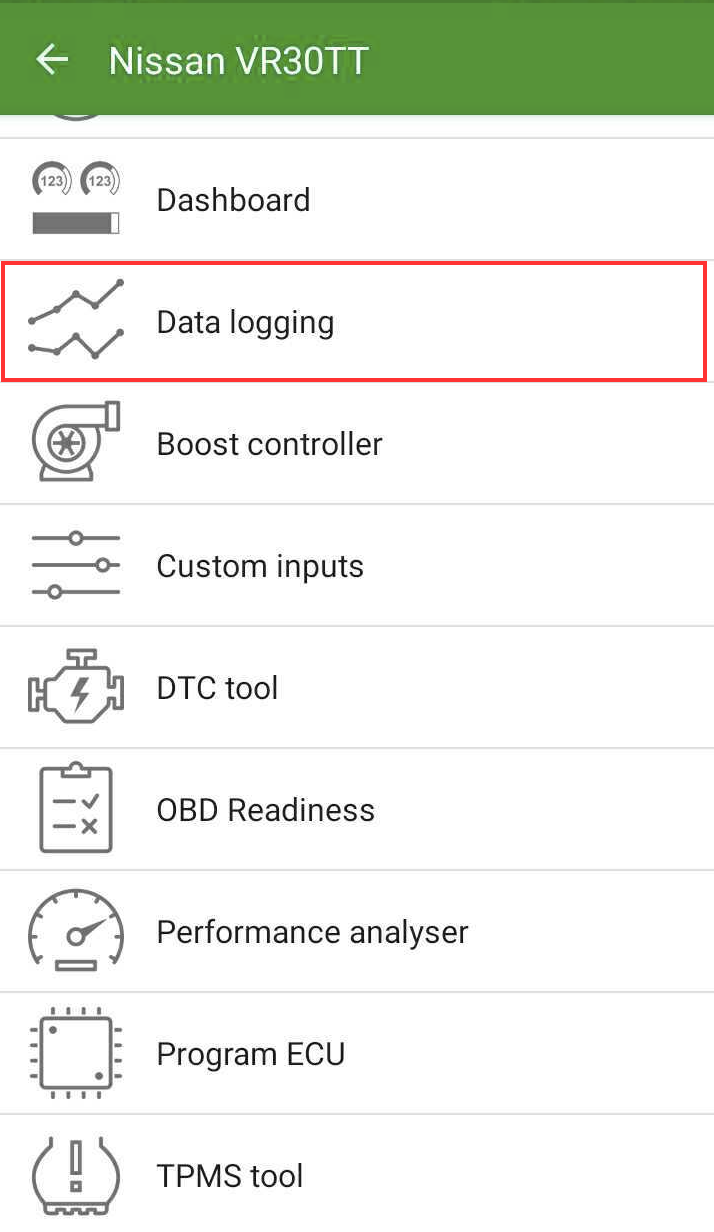
- From there select "Datalogging".
- At the next page, hit start in order to begin datalogging.
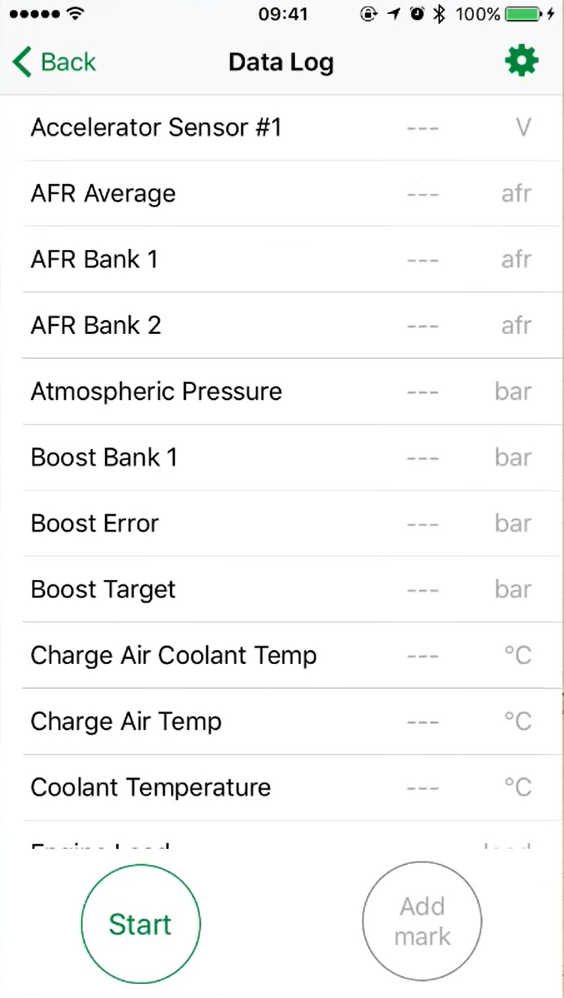
- The "Add Mark" option will place a mark on the datalog. This can be helpful in the event you have an issue you want to draw your tuner's attention to.
- For Instructions on how to share these logs with your tuner or self please see ECU Connect: My Files - Data Logging
The step by step to send a log to someone is,
- Go to main menu and Press "My Files"
- Go to "Data Logs" in the "My Files" page
- select the Log you wish to share and press the share button at the top left.
Apply A Logging Profile a Tuner Sent
- From there select "Datalogging".
- At the next page, hit Folder Button to select a logging Profile.
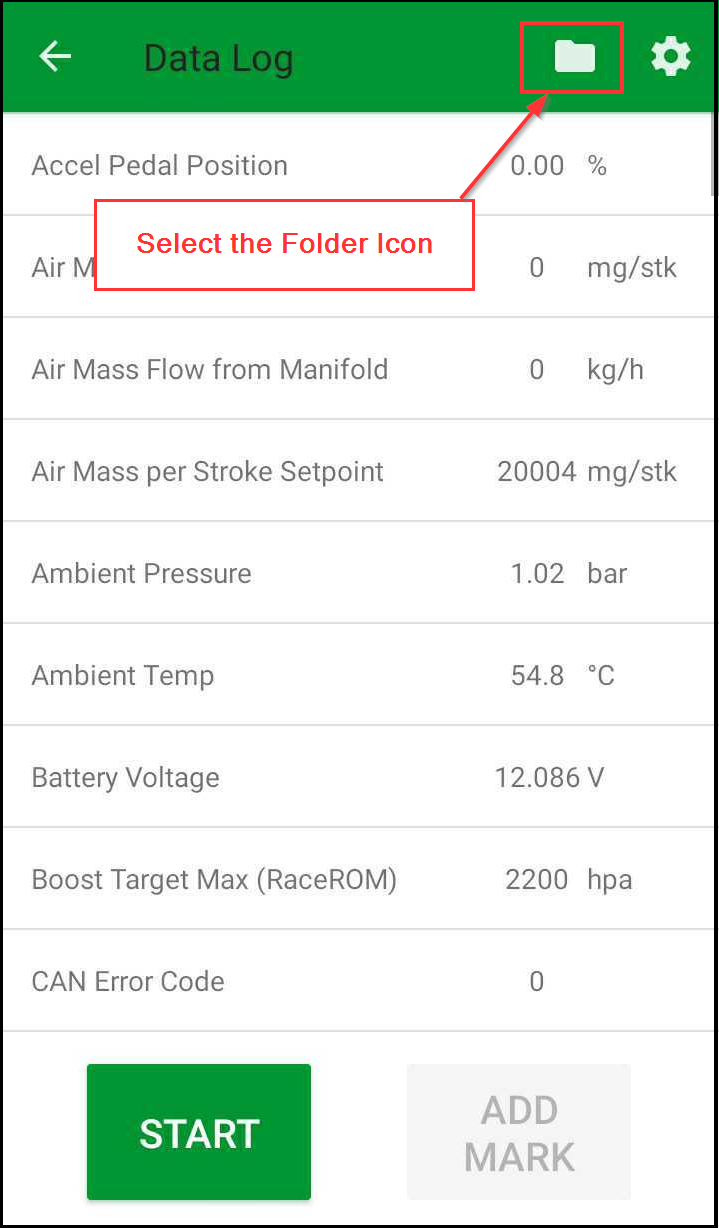
3. Choose the logging Profile your tuner has uploaded to your cloud account.
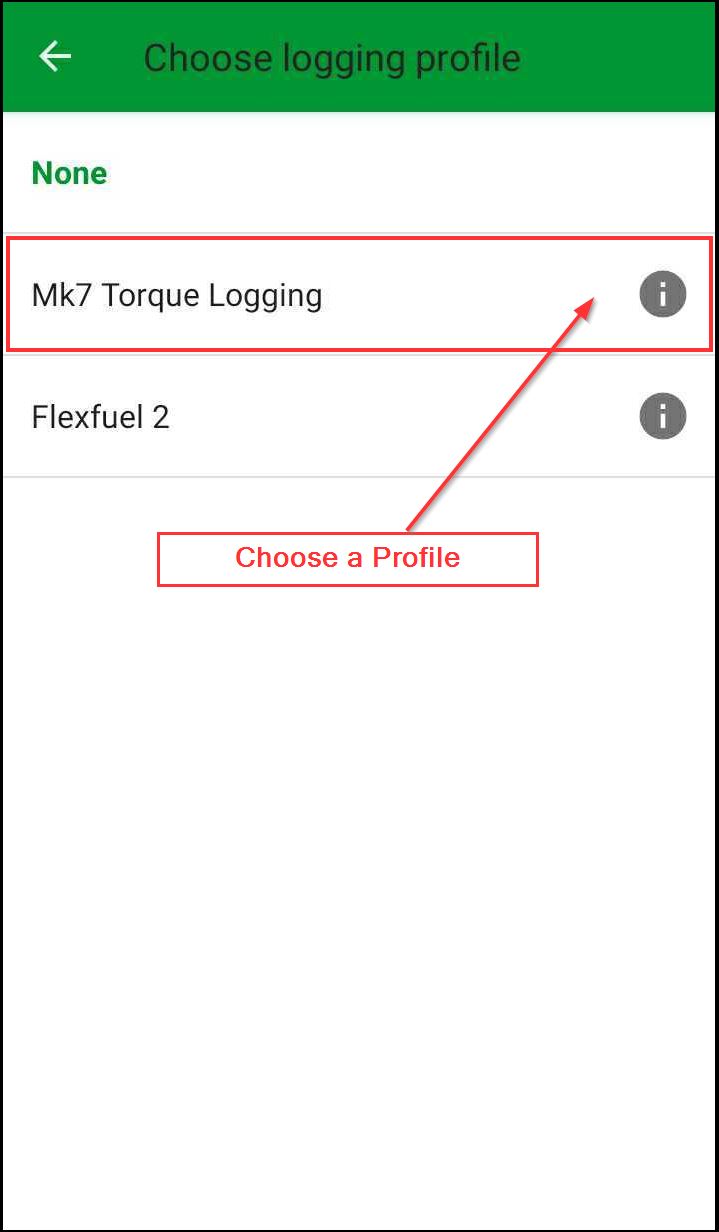
4. From here you will be sent to the logging screen to start logging.
Changing Datalogging Parameters
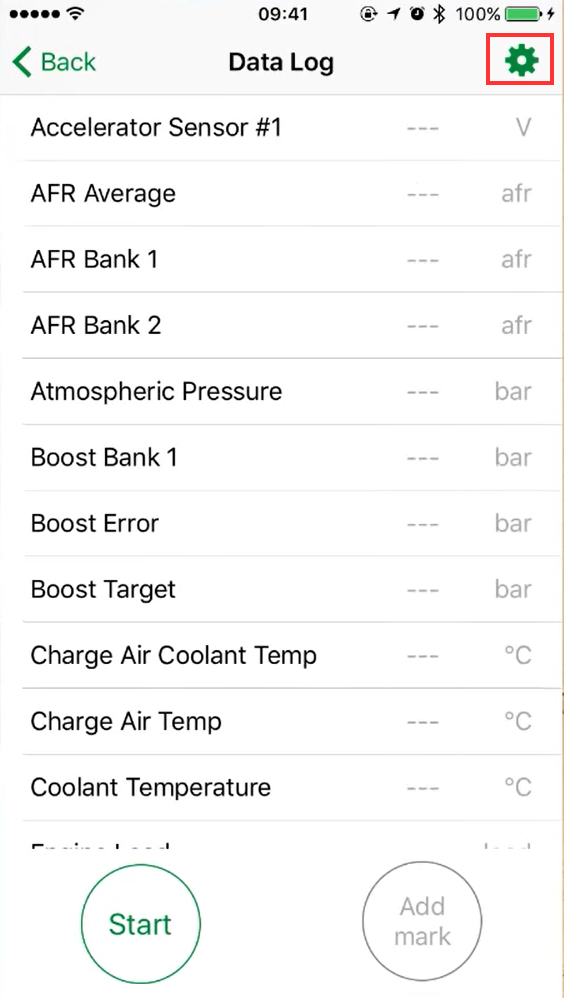
- Clicking the gear icon on the top right will bring you to the parameters menu,
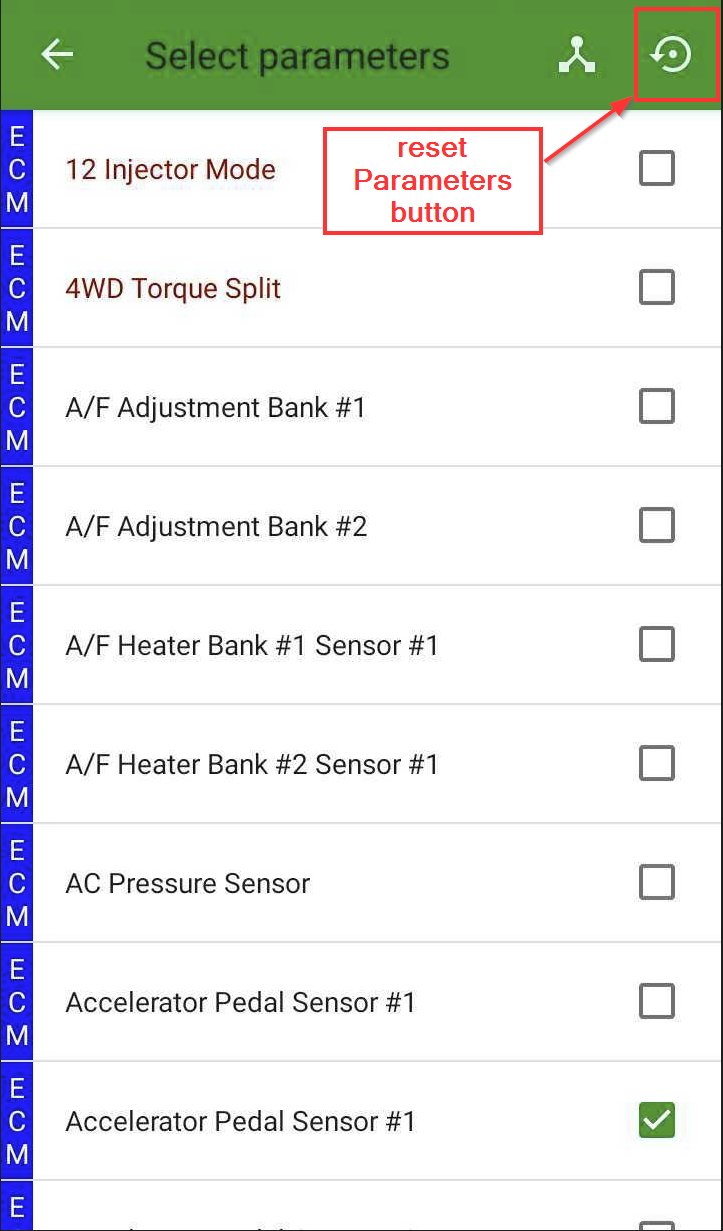
2. this Brings you to the parameter list which can allow you to choose which items you are logging.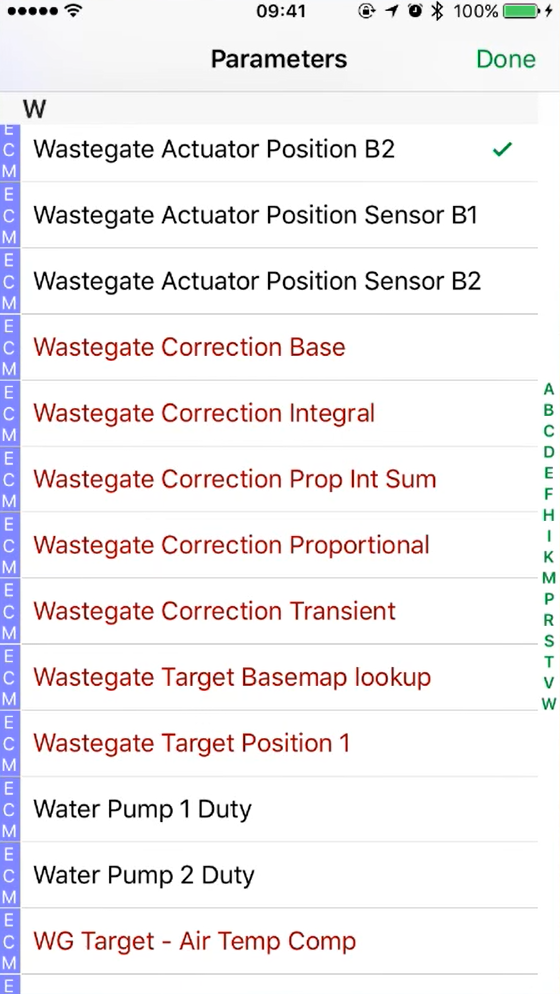
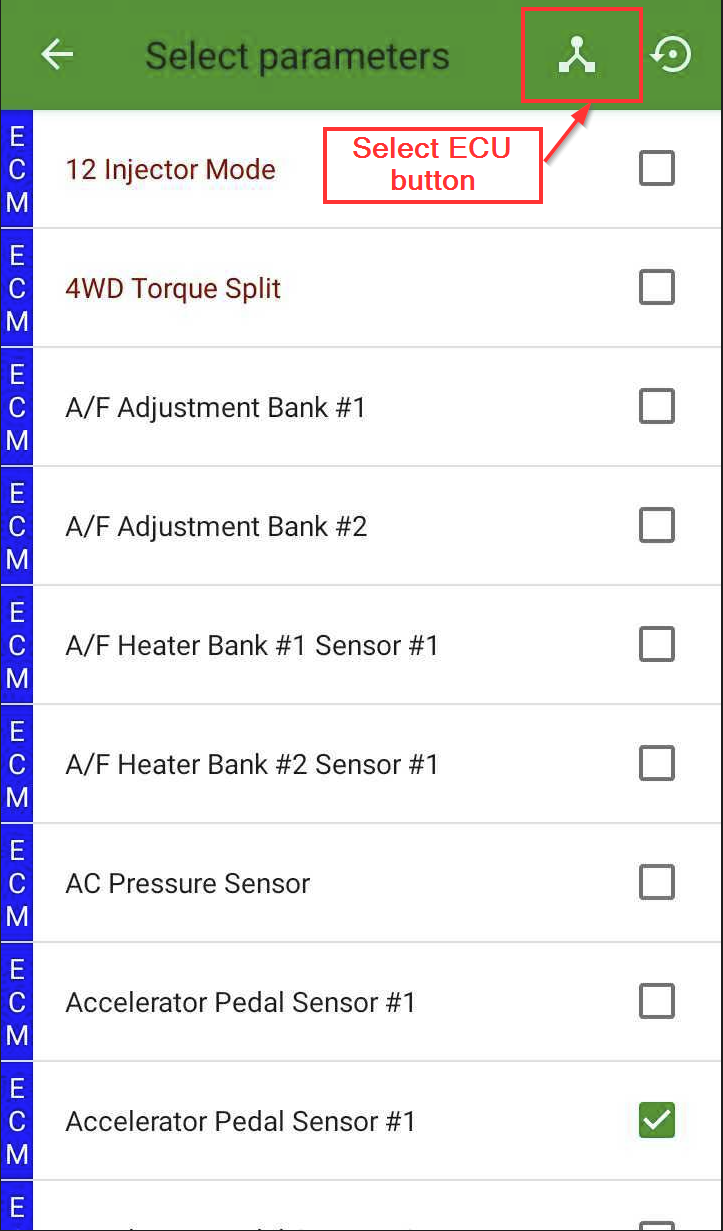
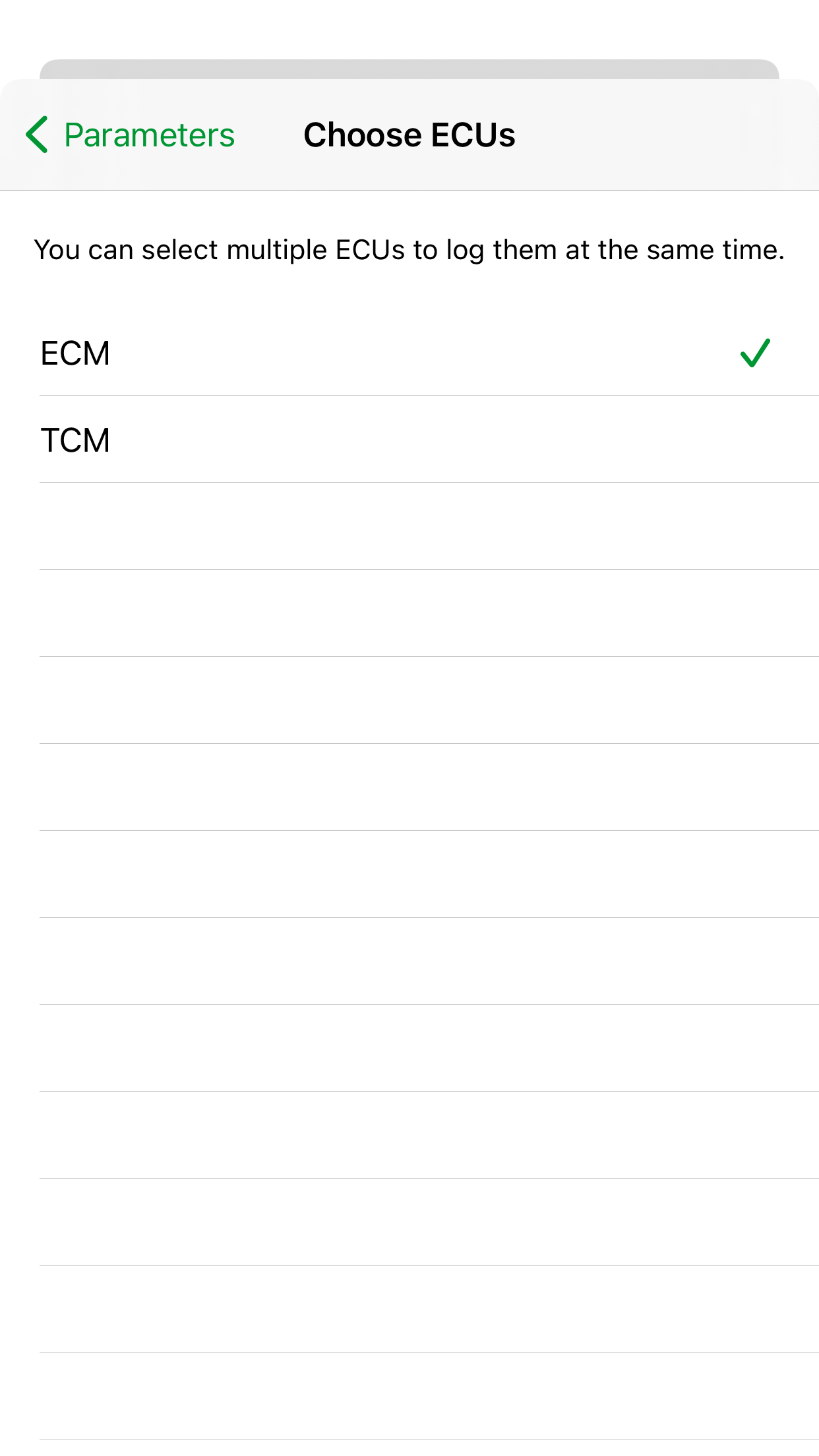
3. You can also change between ECM and TCM logging lists by using the choose ECU button (only for vehicles with two ECU's)
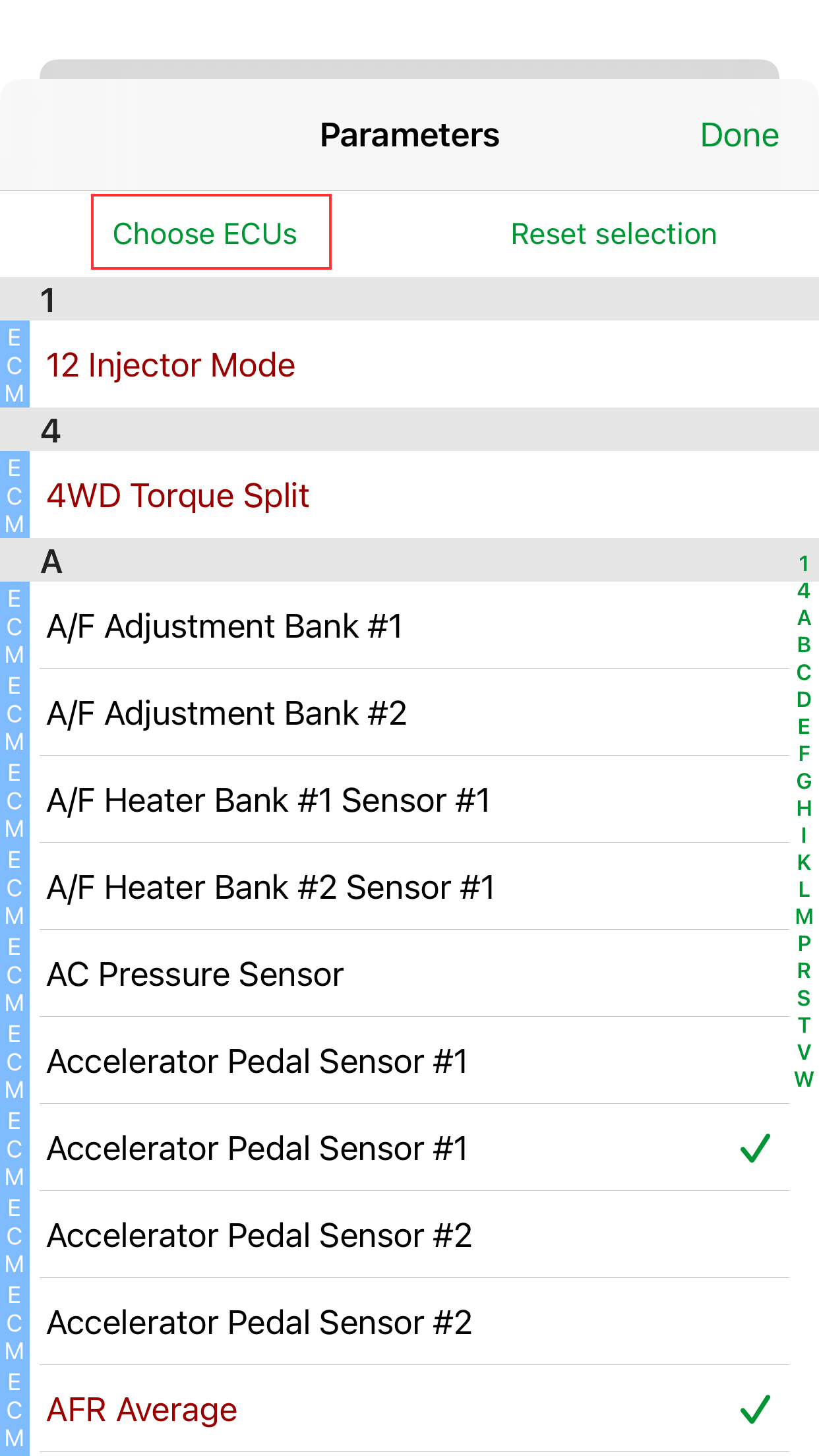
for android
4. You can select both ECU and log them simultaneously.
5. You can also Use the Deselect and reset to defaults option by pressing the reset selection button.
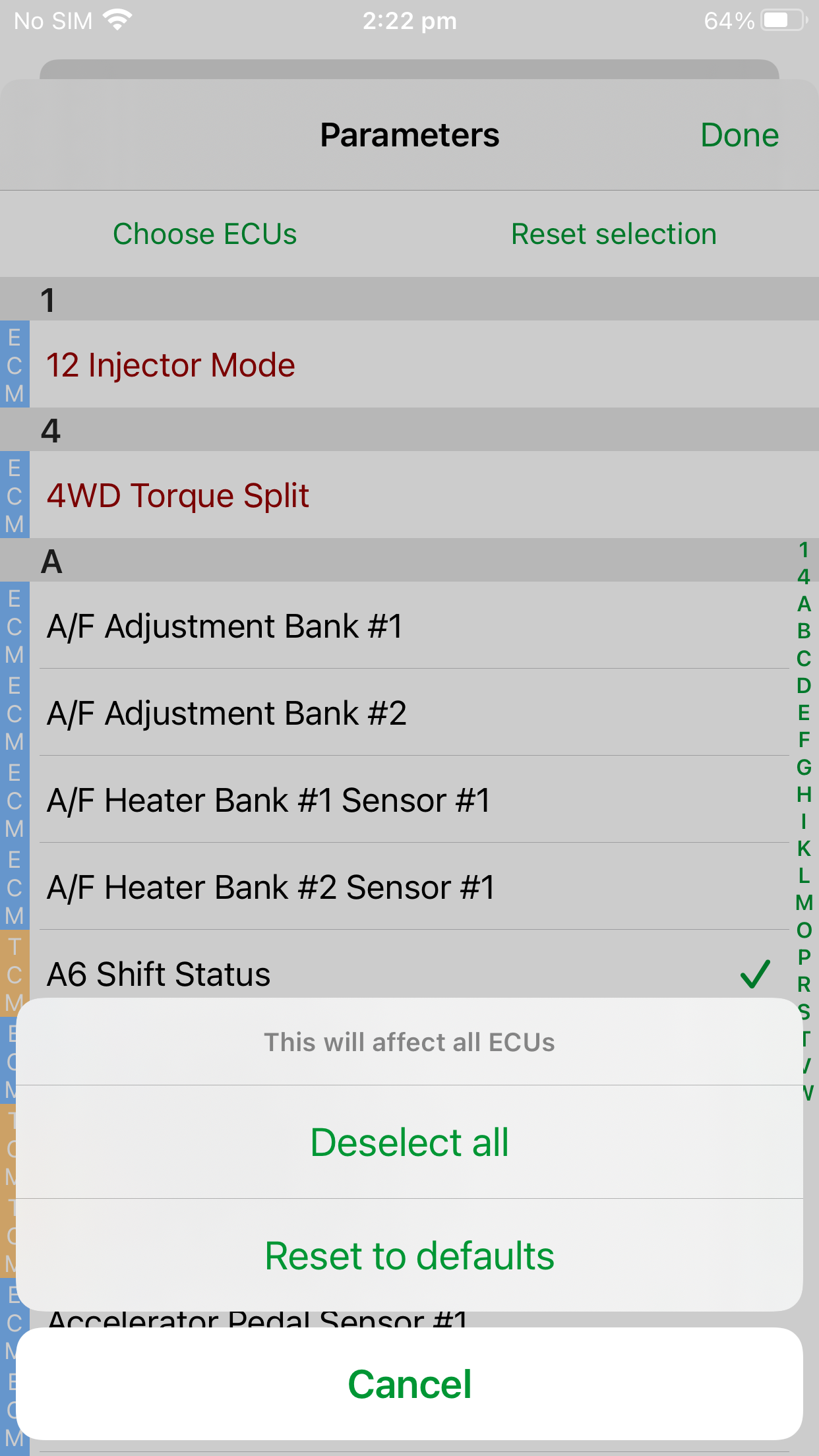
for andriod
| Insert excerpt | ||||||
|---|---|---|---|---|---|---|
|